This page will show a samples on how to setup web server.
Setting Up Web Server Using XAMPP in MacOS
Pre-requisite Software
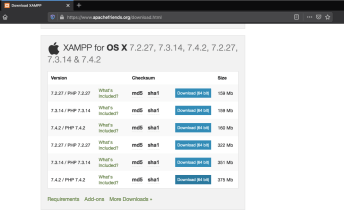
- Download XAMPP from Apache Friends. Select the version in accordance to your system. Make sure to select the latest installer for MacOS.
Installing XAMPP
-
-
- Go to your downloads location, and execute the XAMPP installer. If you have downloaded the version 7.4.2 (64Bit) the filename should be xampp-osx-7.4.2-0-vm.dmg.
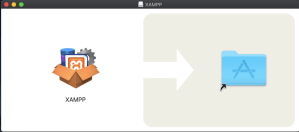
- Upon opening the .dmg, this will show up. Drag the XAMPP icon to the Apps folder. This will install the XAMPP into your MacOS.
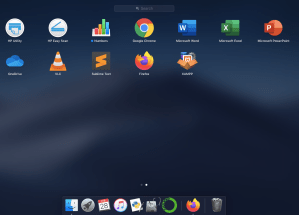
- To verify if XAMPP was installed, open your Launchpad. Doubleclick the XAMPP icon to open the XAMPP Control Panel.
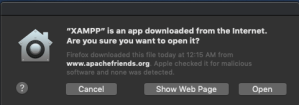
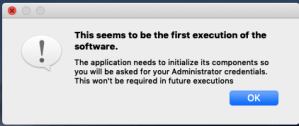
- A pop-up will ask for your confirmation to proceed with opening the application. Once you click “Open”, it will ask for your computer username and password. This will only be asked once.
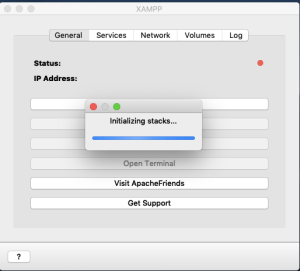
- Upon opening the control panel, all services are initially stopped. Under the General Tab, click “Start” to run the XAMPP application.
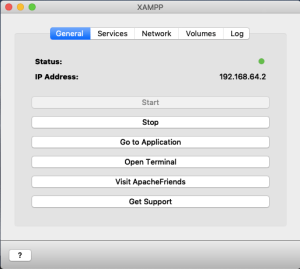
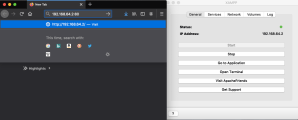
Once XAMPP is started, your status should turn green, and the display should include your current IP address. Take note of this IP address, as this will be used later.
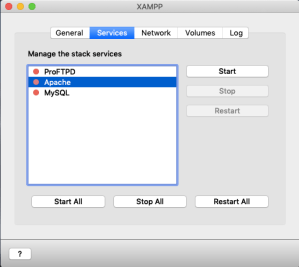
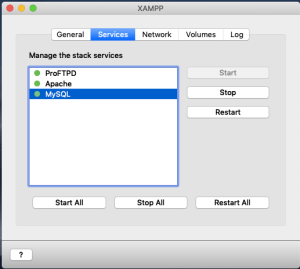
- Go to Services Tab, and start the Apache and MySQL services. If the services were started successfully, the status should turn green.
- Open your web browser and type this in to the address bar: http://<IP Address>:80:
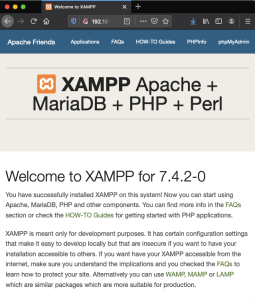
If you have successfully installed XAMPP, this sample page should load on your web browser:
-
Setting Up the Web Server Files
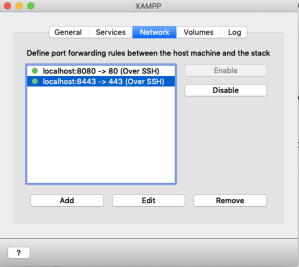
In the XAMPP Control Panel, go to Network. Enable the port you would like to be used by your web app. 80 is the default port, sends data in clear text. 443 can use encryption and is more secure.
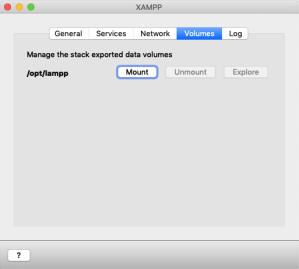
Next, go to Volumes Tab. Click “Mount”. Then click “Explore” to open the location of your XAMPP files.
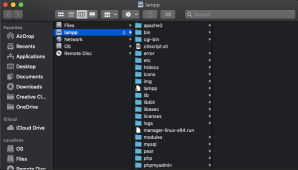
In the mounted location “LAMPP”, go to htdocs folder. Inside the htdocs folder, find the file named index.php.
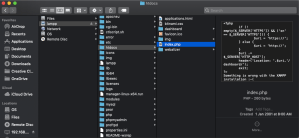
Copy the file on the same location (just to make backup).
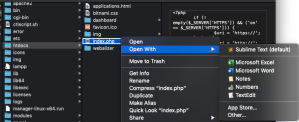
Once the file is backed up, edit the index.php using any text editor you have on your MacOS. In this example, I am using Sublime.
Delete all the file contents, and replace it with a simple HTML content. The sample below should only display “Hello!!”. Save the file once done.
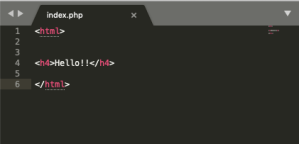
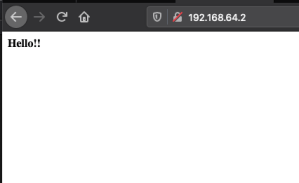
Then, go back to your web browser. Type your IP address again on the address bar. It should display the content of your HTML code. If it is not displaying as expected, it’s either the code is wrong, or the steps above were not followed accordingly.

 Project Puchufy