This page will show a samples on how to setup web server.
Setting Up Web Server Using XAMPP in Windows OS
Pre-requisite Software
- Download XAMPP from Apache Friends. Select the version in accordance to your system.
Installing XAMPP
-
- Go to your downloads location, and execute the XAMPP installer. If you have downloaded the version 7.4.2 (64Bit) the filename should be xampp-windows-x64-7.4.2-0-VC15-installer.
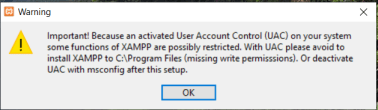
- Upon running the installer, you will normally get this prompt if you are running the User Access Control. It tells you not to install XAMPP in the Program Files folder. Just click OK.
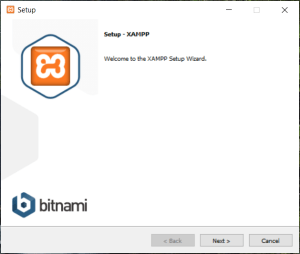
- This is the first step of the installation. Click “Next”.
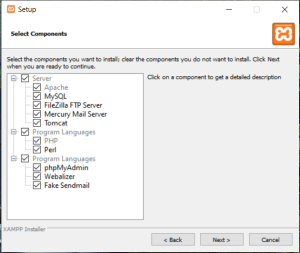
- Select the components you need. If you are creating a web server, you basically just need Apache, MySQL and phpMyAdmin. Click “Next” once needed components are selected.
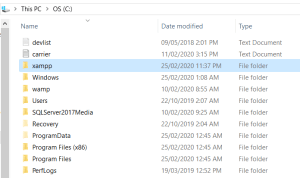
- Before you continue with the installation, go to drive C: of your computer and create a folder named XAMPP. This will be the location of your web server. Make sure you have permission to create a folder in drive C:. You may also opt to create the folder on other drives, but for the sake of this tutorial, we will install it in C: since it’s the most common drive for basic computer setup of Windows OS.
- Go back to the installation. It will ask where to install XAMPP. Select the folder you have created from the previous step.
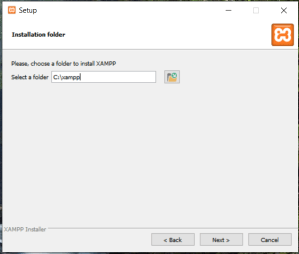
- After clicking “Next”, XAMPP will start the installation.
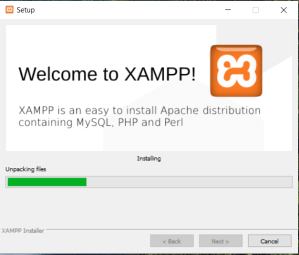
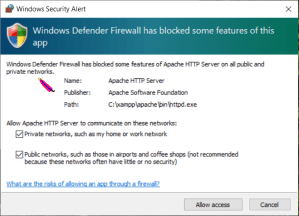
- You might be getting prompts like one below. Just select the “Allow Access”. It will allow the XAMPP application to connect to the public and private networks of your computer.
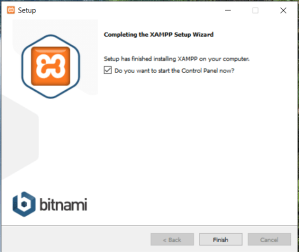
- Upon completing the installation, it will ask if you want to run the Control Panel. It refers to the XAMPP control panel. Tick the box and click the “Finish” button.
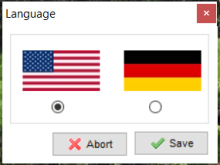
- It will ask you to select the language. After selecting, click “Save”.
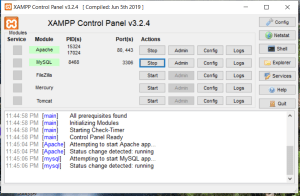
- To test if you have successfully installed your web server, start the Apache and MySQL services. They will be highlighted with green if running correctly. Notice that port numbers are listed as open under the “Port(s)” column. See sample below:
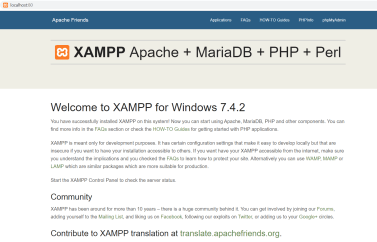
- Then, open a web browser. Type this on your address bar: http://localhost:80. If you are able to open the page shown below, it means you have successfully installed your web server.
To test if you can edit the homepage of your local site, go to:
C:\xampp\htdocs.
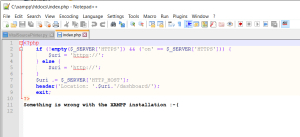
Copy the index.php file and rename as index_backup.php.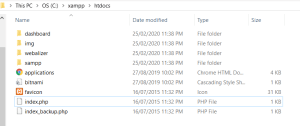
Open the file using a text editor:
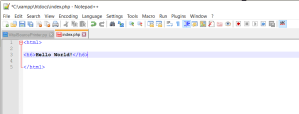
Input a simple HTML code.
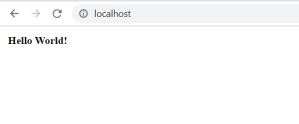
Open your web browser and type this in your address bar:
http://localhost
The intended display from your HTML code should show up on your web page.
 Project Puchufy