Walkthrough for Root Me/Challenges/Web Client
HTML Disabled Buttons
Once you are in the web page of the challenge, you will notice that the text box and the “Member access” button is disabled. To enable it, open the Developer Tools of your browser or press F12. Notice that the input fields are set to “disabled”.
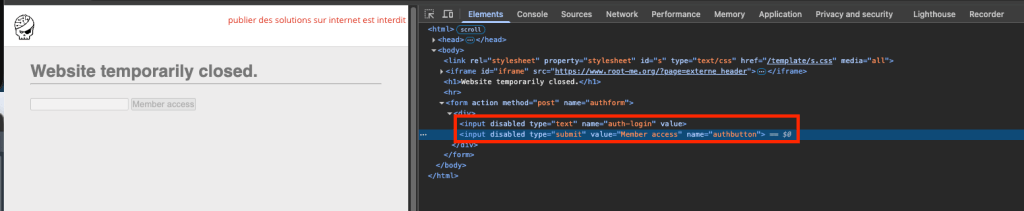
Change the “disabled” value to “enabled”. This will enable the input text box and the “Member access” button.
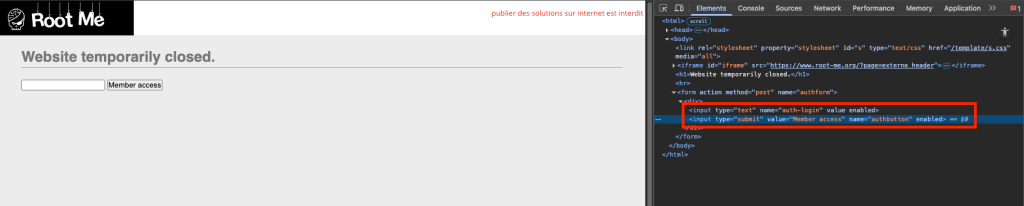
Provide your username for Root Me and click the “Member access” button.
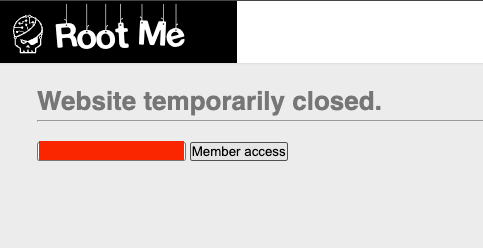
This will give out the validation password. Copy that password.

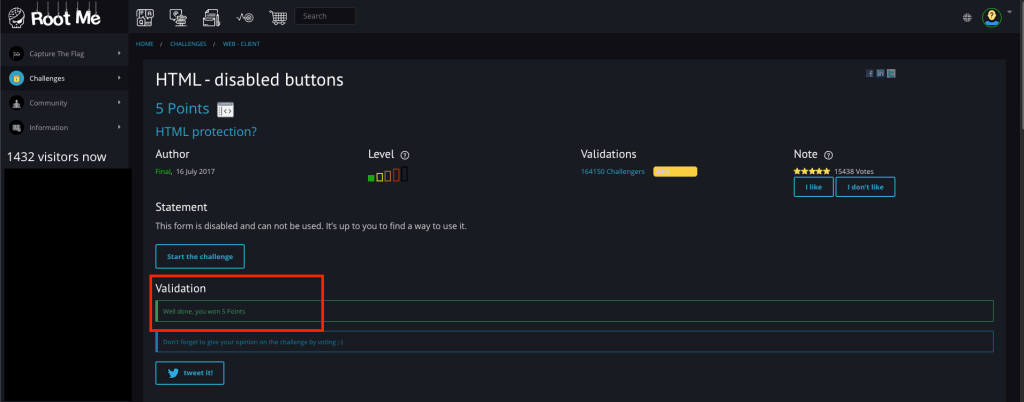
Paste it into the “Validation” field for this challenge in your Root Me account. It will confirm if the password is correct.
 Project Puchufy